DraftBot can only ban a member if you have the "Ban Members" permission, or if one of your roles is allowed to use the /ban command on your server.
Moderation
Are some of your members causing trouble? Then set up DraftBot's moderation tools!
DraftBot's moderation systems are there to help you run your server. Here you will find everything you need to use them, from simple moderation commands to predefined sanctions!
Sanctions
Ban
Banning a member removes them from the server: they will not be able to come back until the sanction is lifted. You can also ban them temporarily, in which case the ban is lifted automatically when the delay expires. If you simply want to remove them while leaving them the option of coming back, use a kick instead.
You can ban a member through the /ban command.
After choosing the user and giving a reason, several additional optional settings are available:
| Option | Description |
|---|---|
[time] | to set a ban duration |
[deleted_messages] | to set how far back the member's messages should be deleted (7 days maximum) |
[image1] | to upload a first image |
[image2] | to upload a second image |
[image3] | to upload a third image |
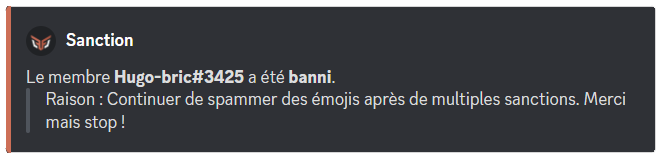
If you want to revoke a member's ban, you can unban them with the /unban command or from the "Bans" tab of your Discord server.
DraftBot needs the "Ban Members" permission, and its role has to sit above that of the targeted member in the server's role list.
Kick
Kicking a member makes them leave the server, but they can come back with a new invitation. If you want to stop them for good, use a ban instead.
You can kick a member from your server with the /kick command.
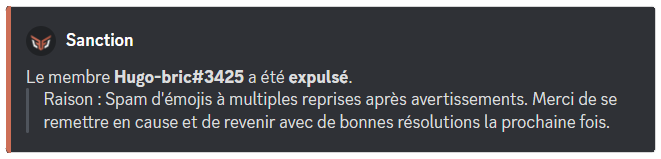
DraftBot can only kick a member if you have the "Kick Members" permission, or if one of your roles is allowed to use the /kick command on your server.
DraftBot needs the "Kick Members" permission, and its role has to sit above that of the targeted member in the server's role list.
You can attach up to 3 images to the sanction (JPEG/PNG/GIF formats).
Warn
You can warn a member with the /warn command. The member then receives a direct message with the reason for their warning. If, on the contrary, you want to record a remark only moderators can see, without notifying the member, use a note.
The member only receives their warning by direct message if they accept direct messages from the server.
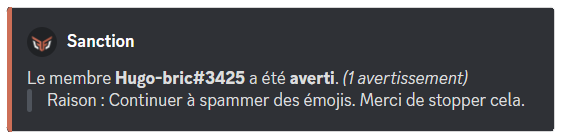
DraftBot can only warn a member if you have the "Manage Messages" permission, or if one of your roles is allowed to use the /warn command on your server.
You can attach up to 3 images to the sanction (JPEG/PNG/GIF formats).
Mute
You can silence a member with the /mute command.
You can, if you want, release a member from their silence with the /unmute command.
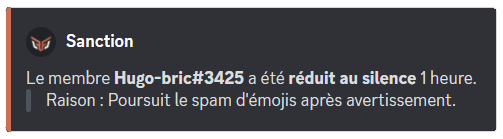
DraftBot can only mute a member if you have the "Timeout Members" permission, or if one of your roles is allowed to use the /mute command on your server.
DraftBot needs the "Timeout Members" permission, and its role has to sit above that of the targeted member in the server's role list.
A mute cannot last more than 28 days.
You can attach up to 3 images to the sanction (JPEG/PNG/GIF formats).
Note
You can add a note to a member in their sanction history with /note. This adds a comment about a member, visible to moderators, without warning the member by direct message.
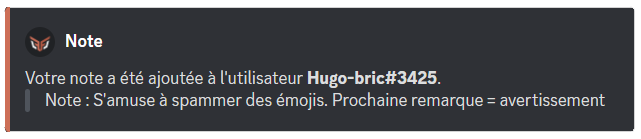
DraftBot can only give a note about a member if you have the "Manage Messages" permission, or if one of your roles is allowed to use the /note command on your server.
You can attach up to 3 images to the sanction (JPEG/PNG/GIF formats).
Managing sanctions
Sanction history
You can see every sanction on your server with /sanctions list.
The command offers several filtering options to narrow down your search:
| Options | Description |
|---|---|
[user] | Display only the sanctions of a specific member |
[sanction] | Filter by type of sanction (warn, temporary mute, kick, ban, temporary ban, note) |
[search] | Search within the reasons of the sanctions |
[moderator] | Display only the sanctions applied by a specific moderator |
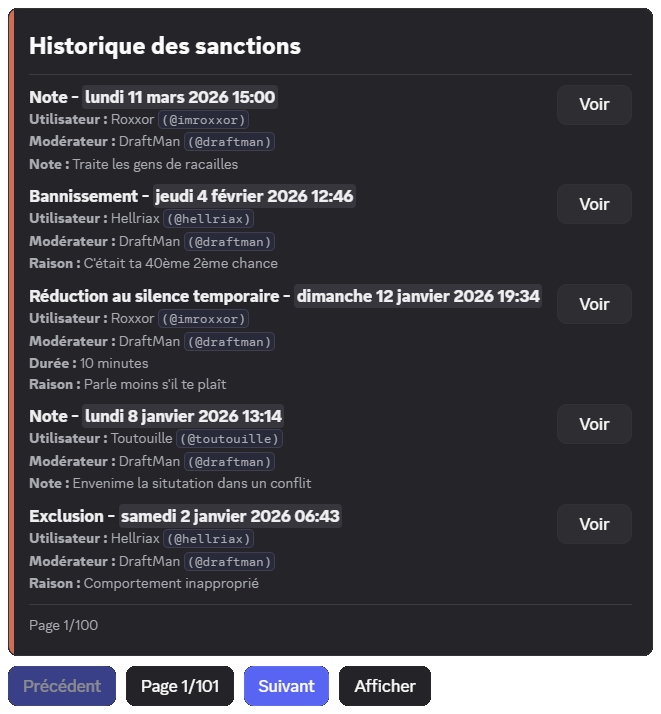
The interactive interface lets you navigate between sanctions with pagination buttons. From this list, you can:
| Action | Description |
|---|---|
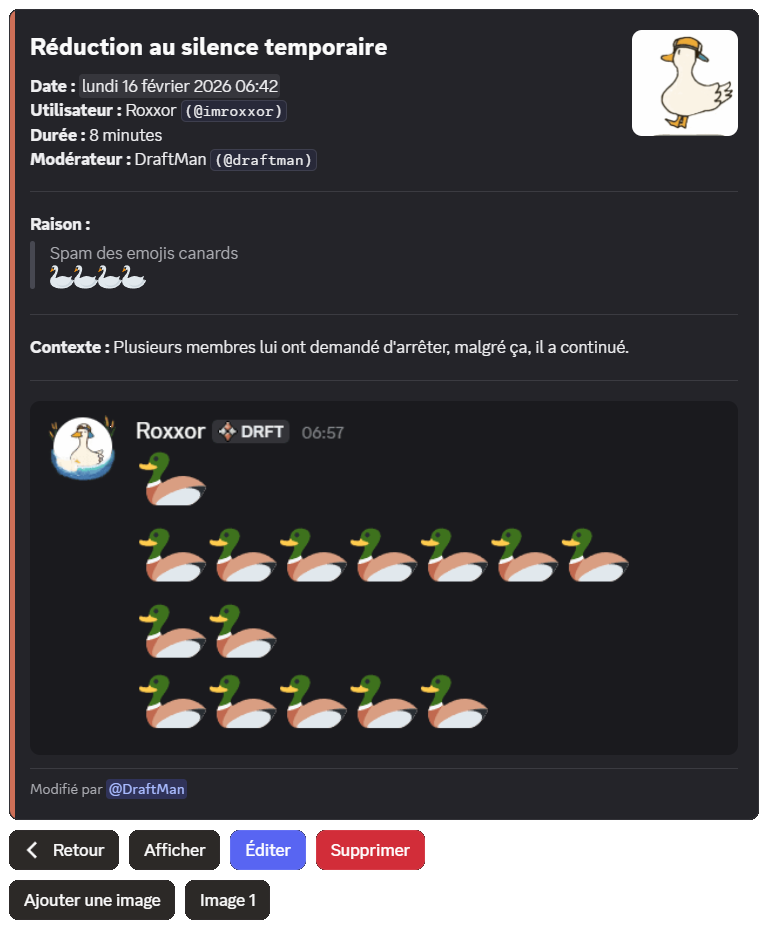
| View | Display the full details of a sanction |
| Show | Share the sanction publicly in the channel (this button is hidden if the Sanctions displayed by default option is already enabled) |
Removing sanctions
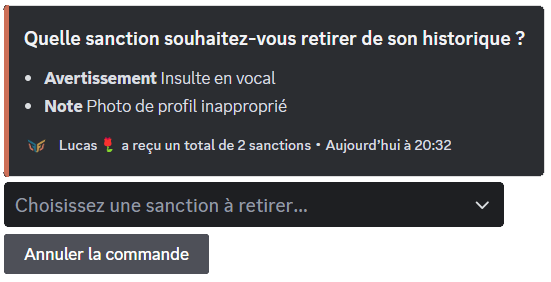
You can remove a sanction from a member of your server with the /sanctions remove command. You can also reset every sanction of a member at once through /adminreset sanctions member.
Likewise, if you want to remove every sanction of every member of your server, you can use /adminreset sanctions server.
Note that the /adminreset sanctions member and /adminreset sanctions server commands cannot be undone.
Editing a sanction
From the sanction history (/sanctions list), click "View" to open the details of a sanction.
You can then:
| Action | Description |
|---|---|
| Edit | the reason and the context of the sanction |
| Add/remove images | (up to 3 per sanction, JPEG/PNG/GIF formats) |
| Delete | the sanction |
The context field adds extra information to a sanction (links, internal notes, circumstances). It is only visible to moderators.
Changes are tracked: the list of moderators who have edited the sanction is displayed in its details.
Editing an active sanction
When a sanction such as a mute or a temporary ban is still active, you can "Edit the duration".
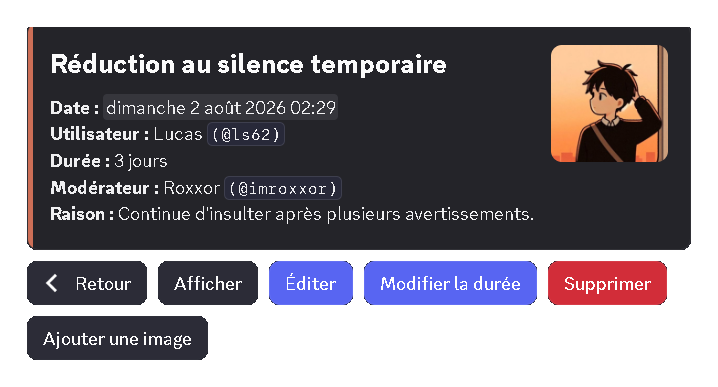
A window then opens, in which you can enter:
- A new duration: the remaining duration you want to give the sanction (for example: 30m, 1h, 3d).
- An end date: the date the sanction ends (for example: 12/08/2026 6:00 pm).
A new duration is always counted from now, not from the date of the original sanction. So if you enter 30m, the member keeps their sanction for 30 more minutes.
Options
With the moderation options, you can configure various aspects of moderation, as described in the sections below.
Send a DM when a sanction is applied
Once on the DraftBot panel, go to the moderation section and its options. All you have to do is enable the options you want!
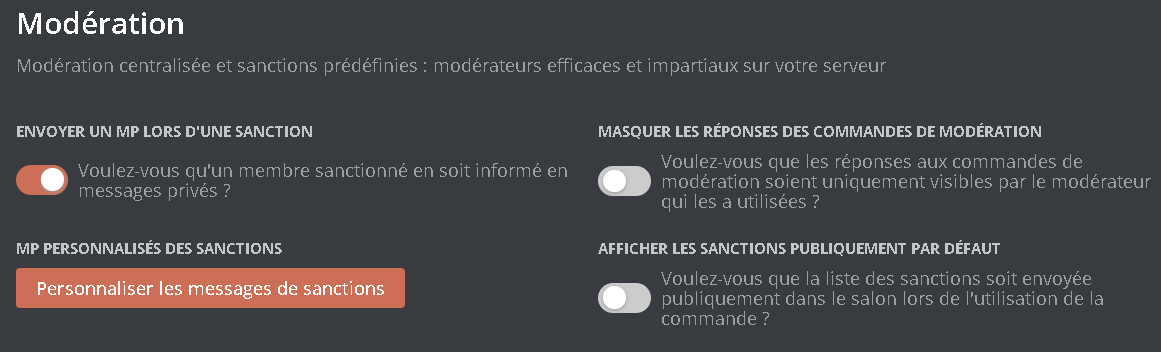
If the "Send a DM when a sanction is applied" option is enabled, the user receives a direct message for every sanction against them.
Once you are done, remember to save your changes with the "Save" button at the bottom of the page.
Custom sanction DMs
Once on the DraftBot panel, go to the moderation section and its options.
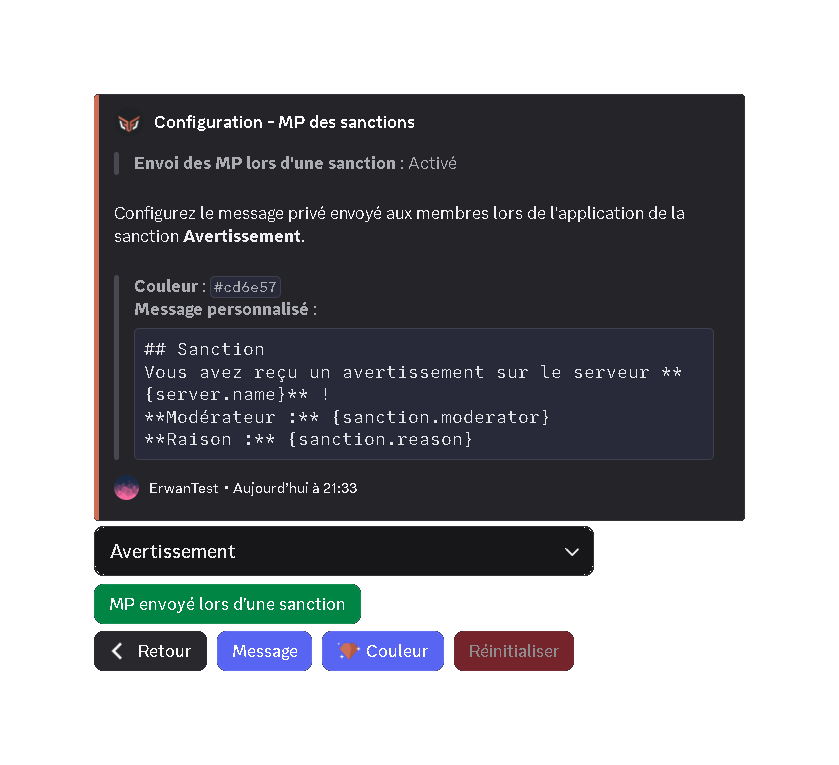
You can then configure the custom sanction DMs you want:
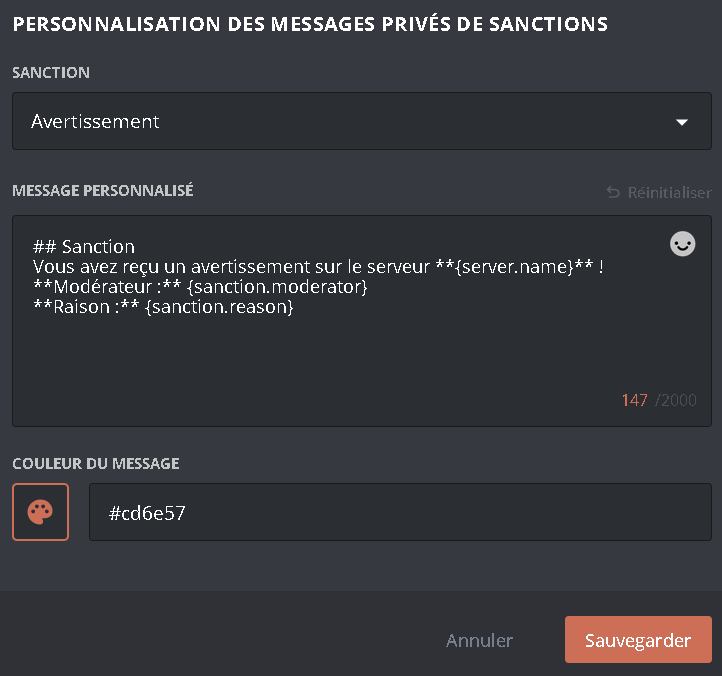
- Sanction: the message sent by DM for the chosen sanction.
- Custom message: the text in the embed's description.
- Color (
 ): the color of the left border of the embed that is sent.
Features marked with the symbol are reserved for premium servers.
Once you are done, remember to save your changes with the "Save" button at the bottom of the page.
Hide command answers
Once on the DraftBot panel, go to the moderation section and its options.
If the "Hide command answers" option is enabled, then when a moderator takes a moderation action such as /mute or /ban, the bot's reply stays invisible to the other users.
Once you are done, remember to save your changes with the "Save" button at the bottom of the page.
Display sanctions by default
Once on the DraftBot panel, go to the moderation section and its options.
If the "Display sanctions by default" option is enabled, then when a moderator runs a command such as /sanctions list, the bot's reply is visible to every member of the channel. If it is disabled, the reply is only visible to the moderator who ran the command.
Once you are done, remember to save your changes with the "Save" button at the bottom of the page.
Predefined sanctions
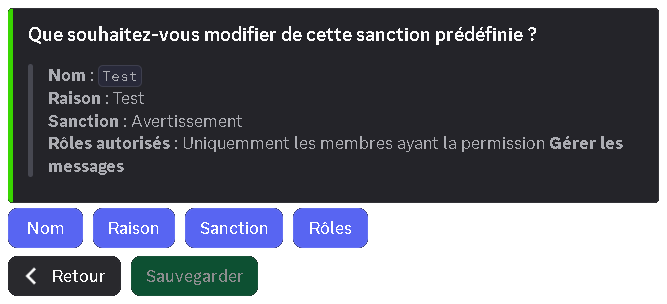
A predefined sanction is a preconfigured sanction that centralizes different moderation actions into a single command: /mod. You choose the sanction to apply as well as its reason. This makes the sanctions your moderators can apply both easier and more consistent.
- Click
"Create a predefined sanction". You can then choose the sanction to apply as well as the reason given when it is used. You can also set a name shown when selecting the predefined sanction in the /mod command. - You can also choose which roles can use this sanction without having the required permission.
Example: role A can apply the kick for advertising without having the permission to kick members.
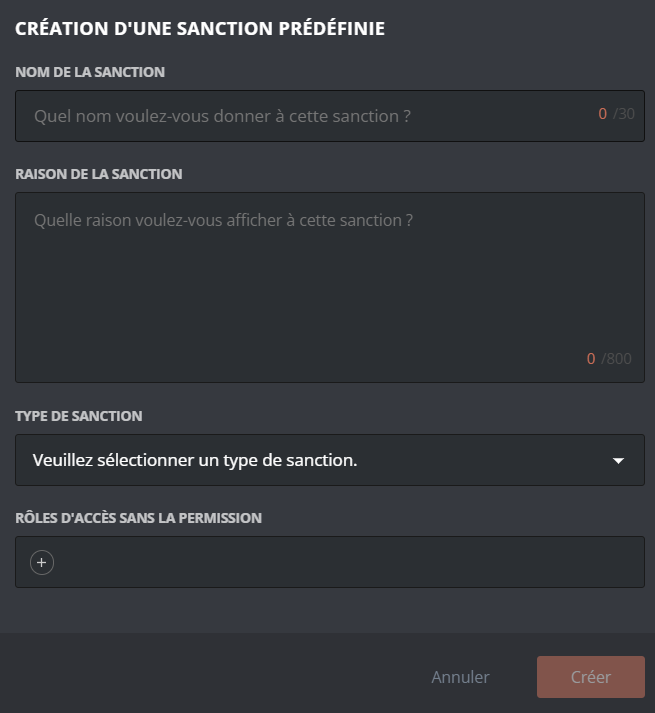
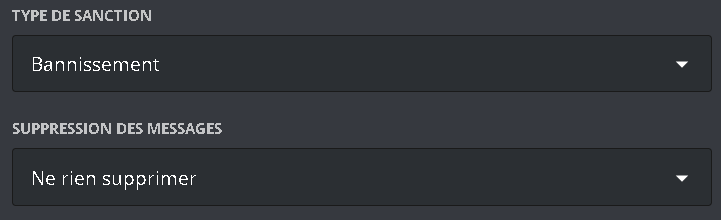
If the chosen sanction is a ban (permanent or temporary), a "Del. messages" option appears.
Once you are done, remember to save your changes with the "Save" button at the bottom of the page.
Congratulations! This predefined sanction is now available and can be used through the /mod command.

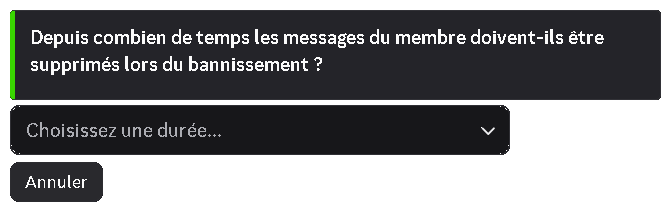
Well done! You have configured your predefined sanctions!
You can add the reports system to use them more effectively!
Reports
Has a user noticed inappropriate behavior on your server? Let them report it to you with DraftBot's report system!
You can also automate your sanctions through auto-moderation!


