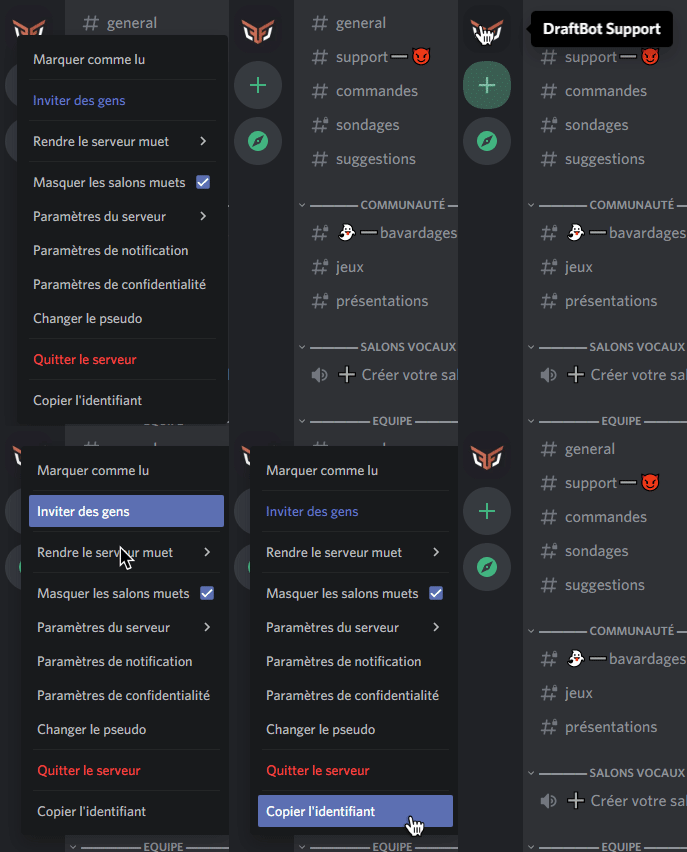
You first have to enable developer mode to obtain IDs.
To do so, go to the user settings, then Advanced, and enable developer mode.
Every message, role, member, server and emoji has an ID of its own. It can be useful when configuring certain modules.
You first have to enable developer mode to obtain IDs.
To do so, go to the user settings, then Advanced, and enable developer mode.
To obtain a message's ID, you have to:
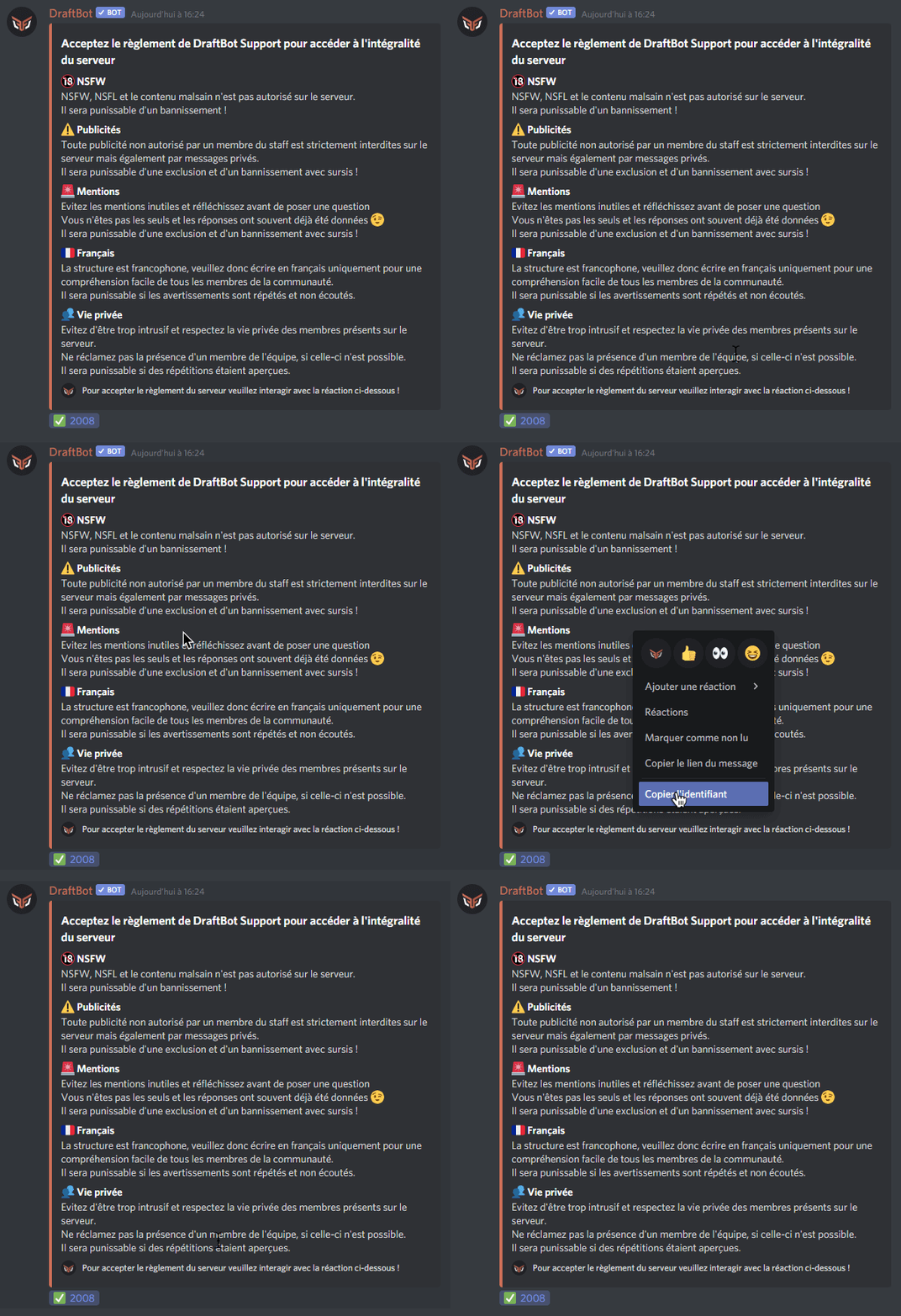
You first have to enable developer mode to obtain IDs.
To do so, go to the user settings, then Advanced, and enable developer mode.
To obtain a role's ID, you have to:
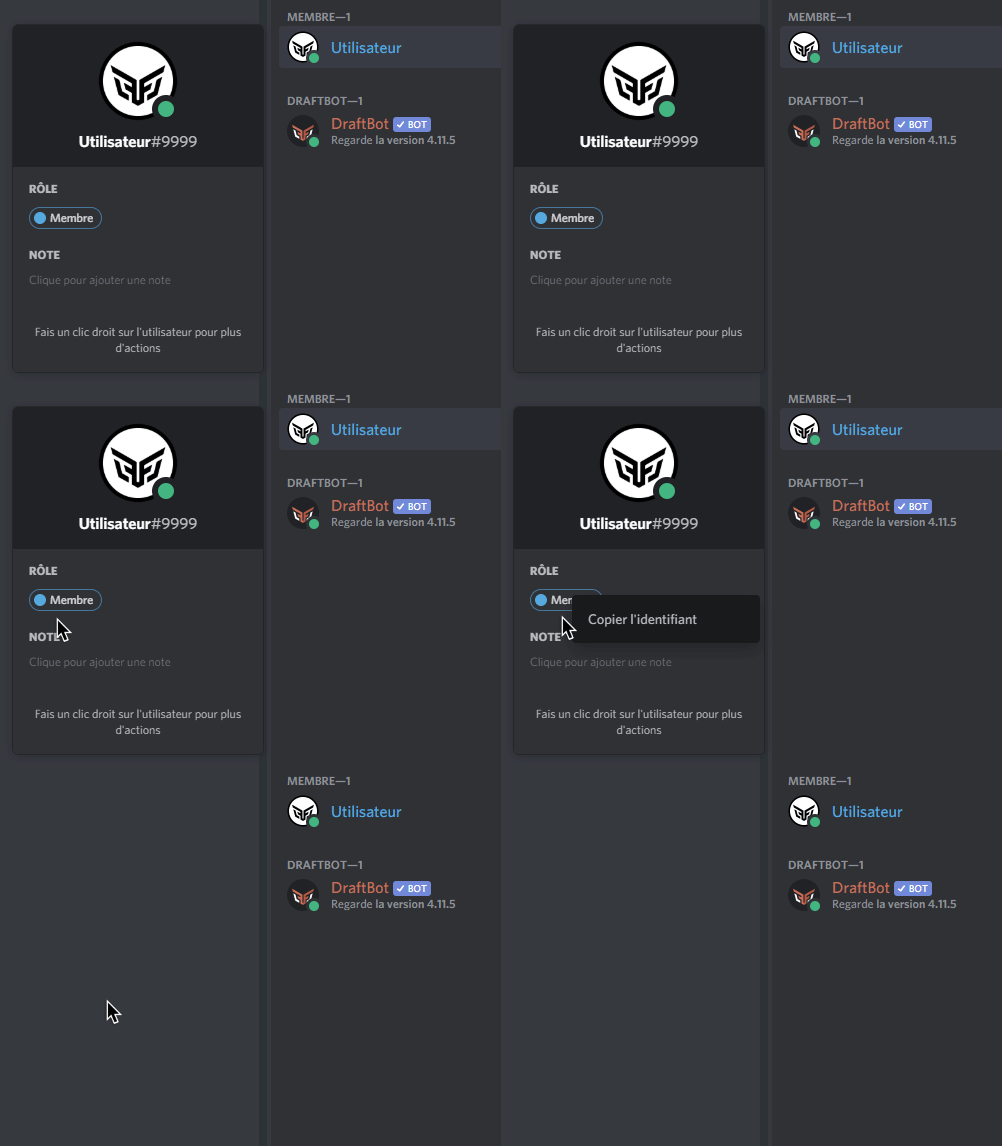
If you need to mention a role (on the web panel, for example), simply write <@&[Role-ID]>.
You first have to enable developer mode to obtain IDs.
To do so, go to the user settings, then Advanced, and enable developer mode.
To obtain a member's ID, you have to:
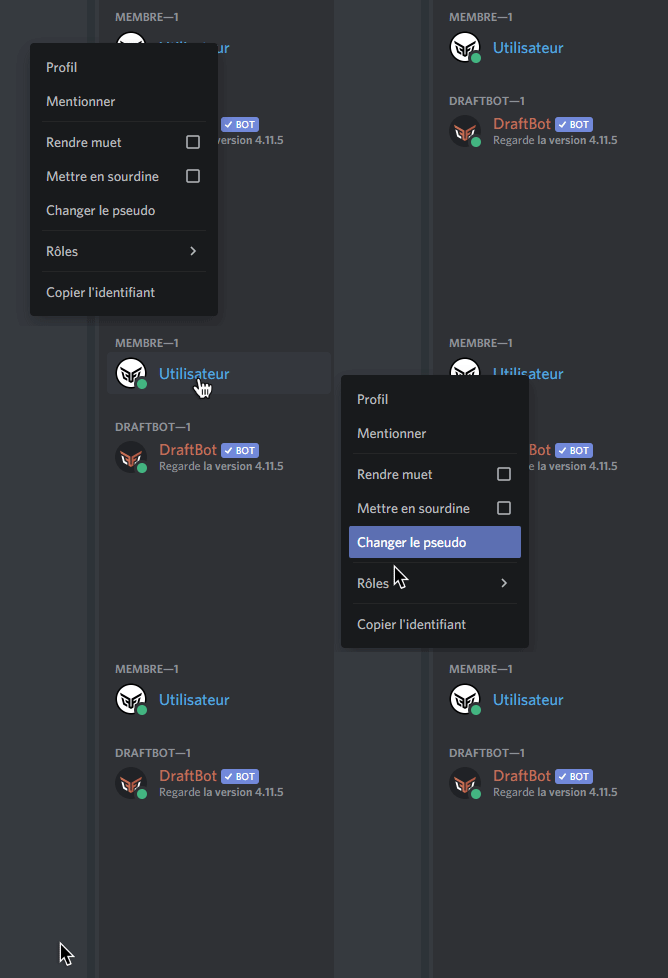
If you need to mention a member (on the web panel, for example), you can write <@Member-ID>.
To obtain an emoji's ID, all you have to do is:
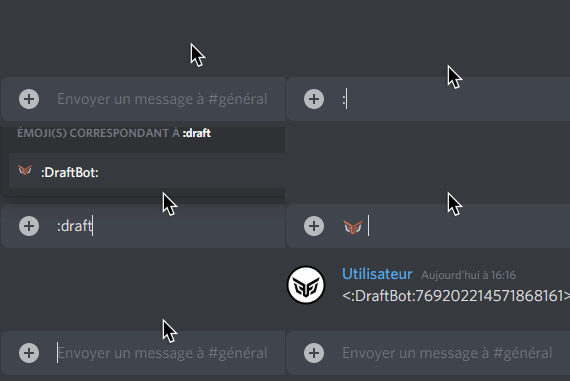
On Android, to obtain an emoji's ID:
:TheNameOfYourEmoji: in a text channelYou first have to enable developer mode to obtain IDs.
To do so, go to the user settings, then Advanced, and enable developer mode.
To obtain a channel's ID, you can:
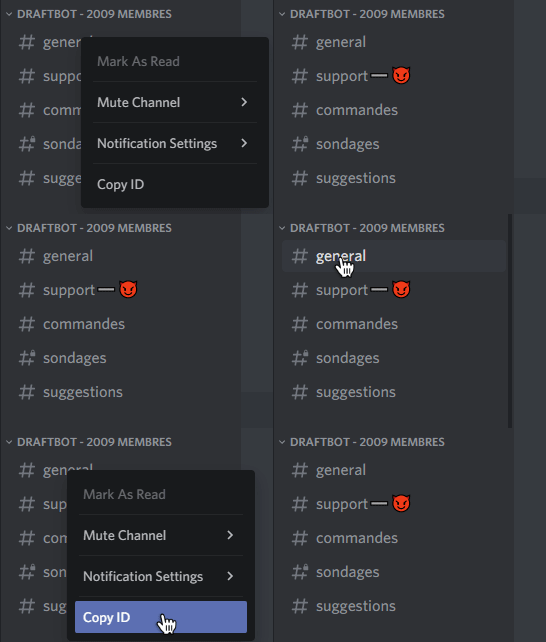
If you need to mention a channel (on the web panel, for example), you have to write <#Channel-ID>
You first have to enable developer mode to obtain IDs.
To do so, go to the user settings, then Advanced, and enable developer mode.
If you want to obtain a server's ID, all you have to do is: