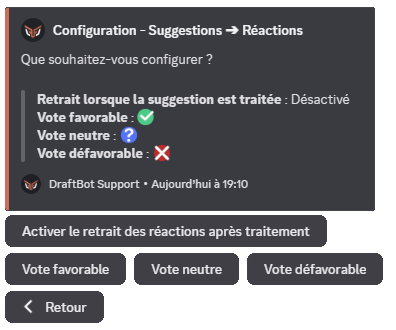
Collect your members' suggestions and feedback easily with DraftBot!
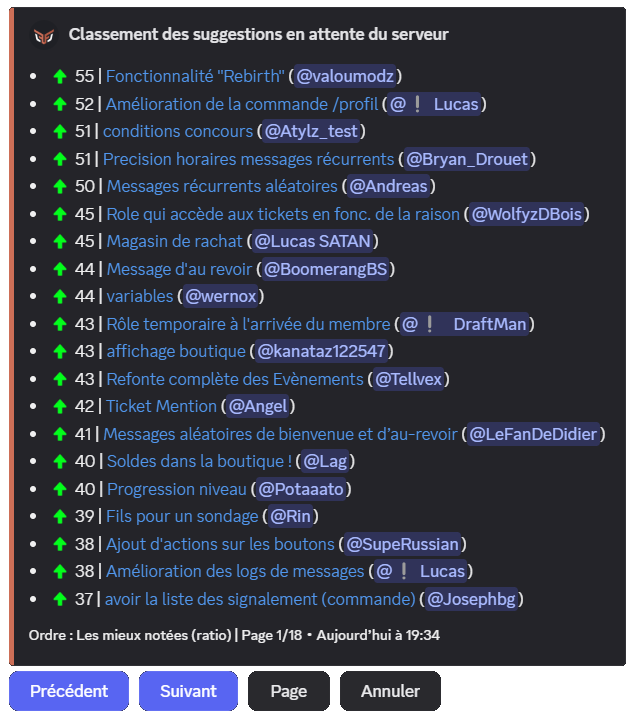
The Suggestions module lets your members put forward ideas the community can vote on, and that moderators can then accept, refuse or plan. It comes with a reward system to recognize contributors.
Open the suggestions menu with the /suggest command, then click the "New suggestion" button.
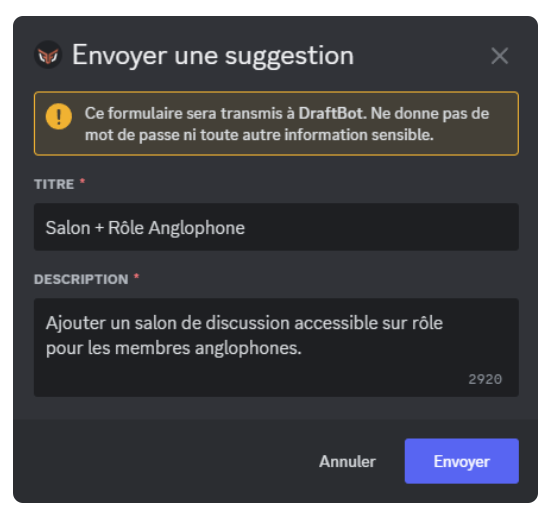
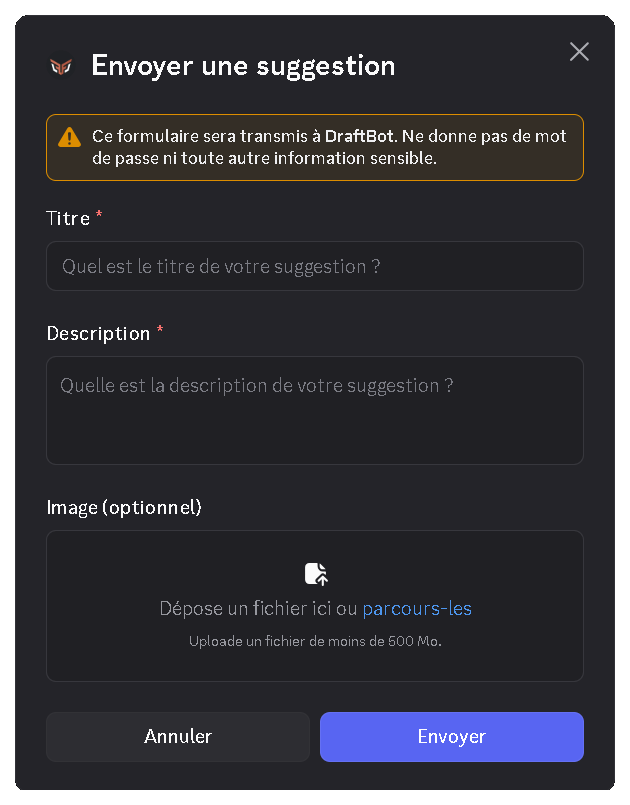
DraftBot then opens a pop-up where you can fill in:
Title ➜ The title to give your suggestion. It is also used to reference it in the suggestions menu.
Description ➜ The body of your suggestion, where you can go into detail to explain it better to the other members.
Suggestion creation menu
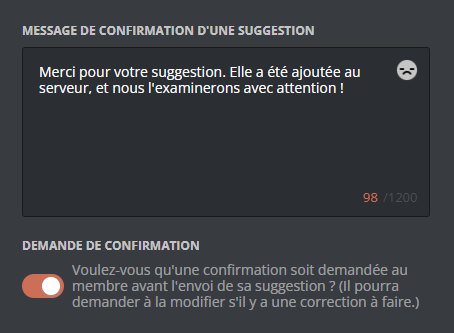
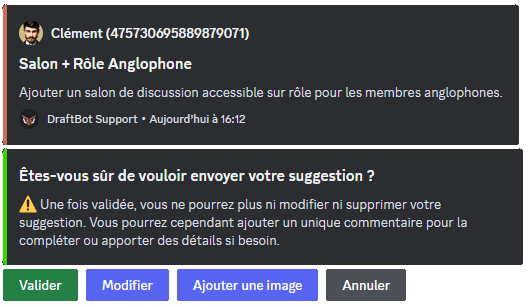
Once your suggestion is written, DraftBot displays a confirmation message. At that point, you can edit your submission, add an image to it, confirm it, or cancel it:
Suggestion confirmation menu
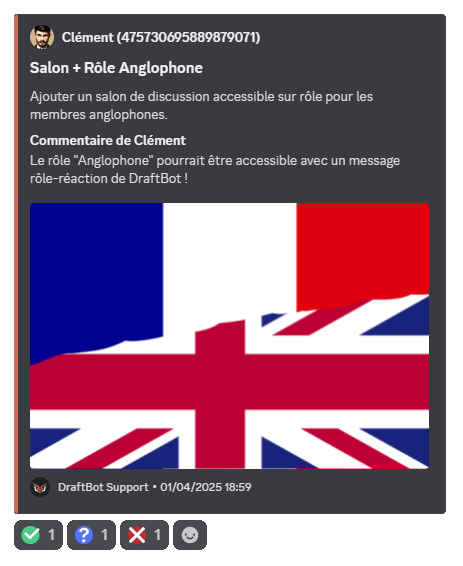
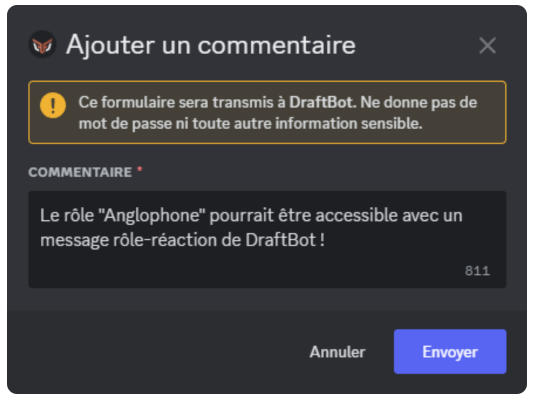
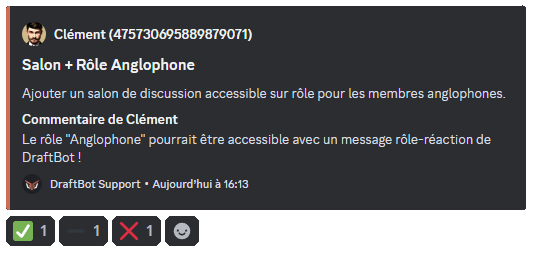
Want to add more to your suggestion? No problem: DraftBot lets you include a comment, and even an illustration!
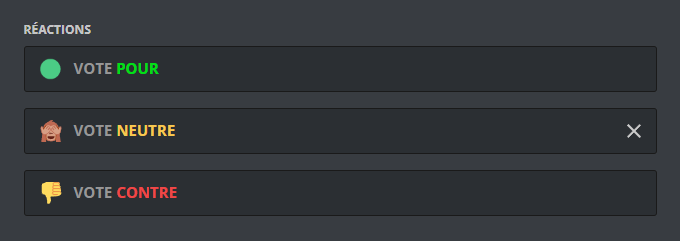
Suggestion with a comment, an illustration and custom vote icons
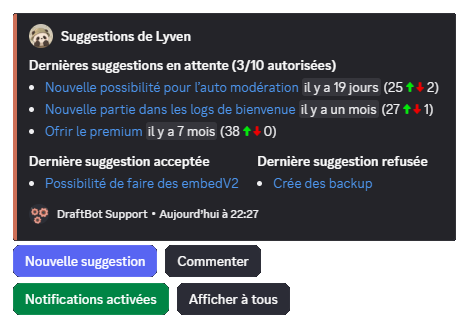
To open the suggestions menu, run the /suggest command.
A menu then opens. It lets you:
submit new suggestions,
comment on one of your suggestions,
delete one of your pending suggestions (if the option is enabled),
open one of your suggestions (by clicking its title), or
check the state of your suggestions (number of votes, status).
You can also decide whether to be notified when the status of one of your suggestions changes (if the "Enable notifications" option is enabled).
To avoid cluttering your channels, the command runs discreetly: the message that ran the command is deleted immediately, and DraftBot's reply is only visible to the person who ran it!
You can attach an image to your suggestion by dropping the file in the area provided, or by clicking the "browse" button in DraftBot's "Send a suggestion" window (image below).
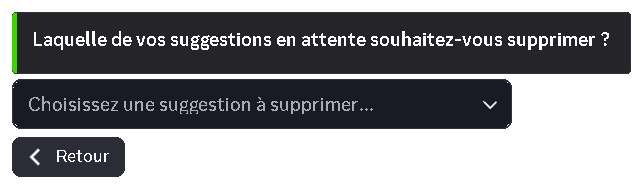
Changed your mind? If the administrator has enabled the option, the "Delete" button of the suggestions menu lets you remove one of your pending suggestions yourself, without going through a moderator.
Select the suggestion concerned, then confirm: DraftBot deletes its message in the reception channel, as well as the thread that may have been attached to it.
Suggestion deletion panel
Deletion is permanent. Once accepted, refused or planned, a suggestion can no longer be deleted by its author.
As a moderator, you can accept, refuse or plan a suggestion in two clicks or through a command.
You need the "Manage Messages" permission to accept, refuse or plan a suggestion.
Has a suggestion received enough votes, and/or caught your eye? You can accept it, which stops the vote and validates the suggestion. There are two ways of doing so:
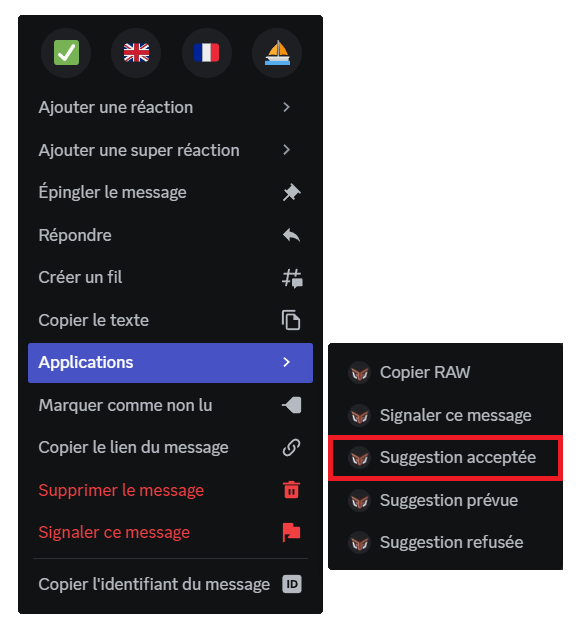
On desktop, right-click (on mobile, long-press) the suggestion you want to accept, then open the "Apps" line. You will then be able to accept the suggestion.
Accepting a suggestion
The /suggestmod accept command also lets you accept a suggestion. To do so, you need to enter the ID of the message of the suggestion to accept.
Whichever method you use, you can add a reason for accepting if you want to.
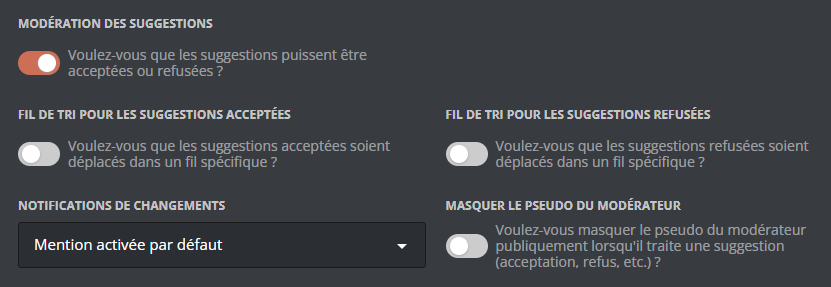
If you have enabled the "Set the thread of accepted suggestions" option, the suggestion is automatically moved to the thread you defined.
Has a suggestion received a lot of negative votes, or is it simply not feasible? You can refuse it, which stops the vote and invalidates the suggestion. There are two ways of doing so:
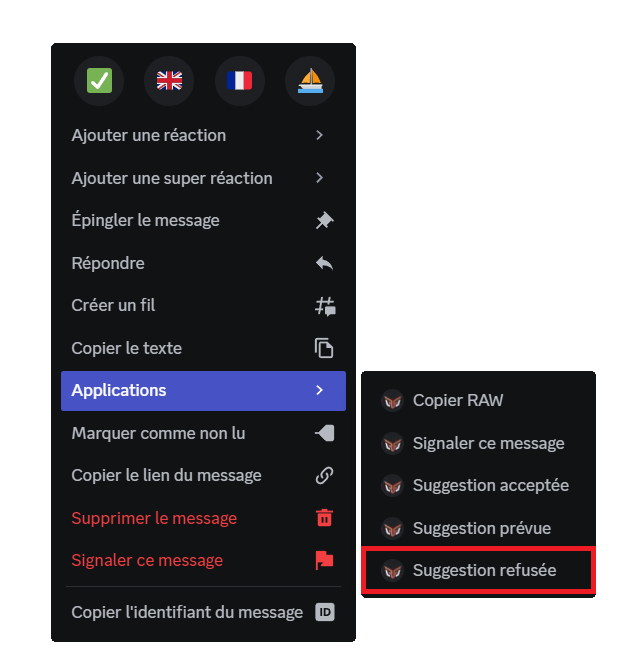
On desktop, right-click (on mobile, long-press) the suggestion you want to refuse, then open the "Apps" line. You will then be able to refuse the suggestion.
Refusing a suggestion
The /suggestmod refuse command also lets you refuse a suggestion. To do so, you need to enter the ID of the message of the suggestion to refuse.
Whichever method you use, you must give a reason for the refusal to go through.
If you have enabled the "Set the thread of refused suggestions" option, the suggestion is automatically moved to the thread you defined.
Has a suggestion been retained and is its implementation planned? You can mark it as "planned", which stops the vote. This status can be given directly to an ongoing suggestion, or to a suggestion that has already been accepted. There are two ways of doing so:
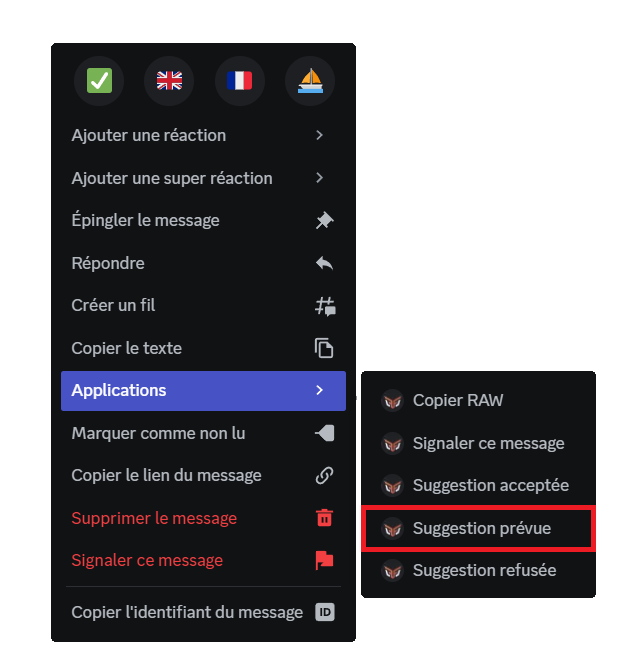
On desktop, right-click (on mobile, long-press) the suggestion you want to plan, then open the "Apps" line. You will then be able to mark the suggestion as "planned".
Planning a suggestion
The /suggestmod planned command also lets you plan a suggestion. To do so, you need to enter the ID of the message of the planned suggestion. Finally, you can give a reason to explain this choice, or provide details about it.
The status of a suggestion can be changed at any time, by right-click or by command, even after it has been processed. To reopen the vote, set the suggestion back to pending through /suggestmod pending.
Whenever the state of a suggestion changes, the member who sent it is notified by DraftBot through direct messages, if they have enabled notifications in their suggestions menu.
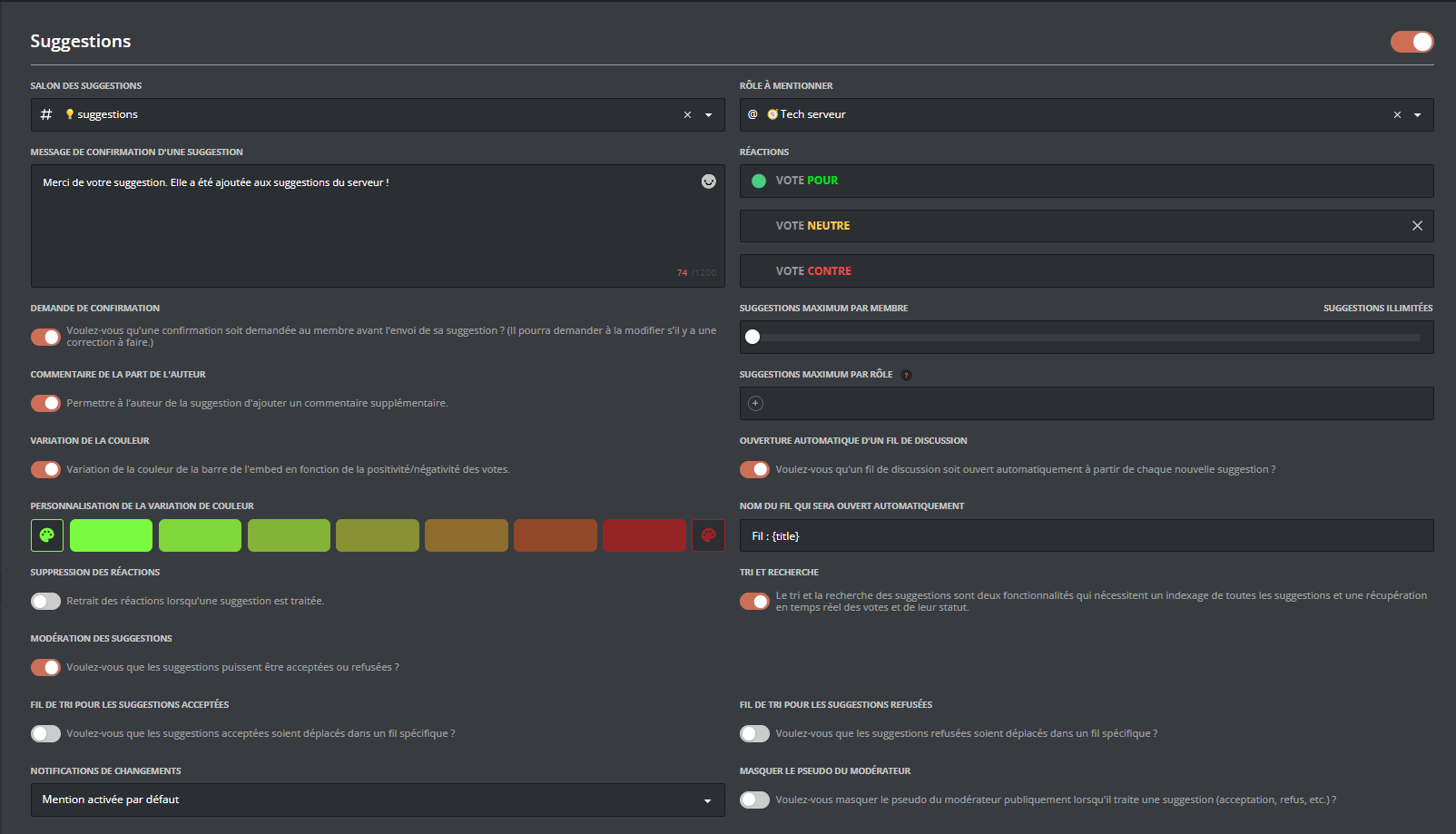
To enable the module, click the button in the top right corner. Every configuration option then appears and stays a few clicks away.
View of the module through the web panel
Once your changes are done, remember to save them with the "Save" button at the bottom of the page!
To go straight to this module's configuration, without going through the main menu, you can run the /config Suggestions command!
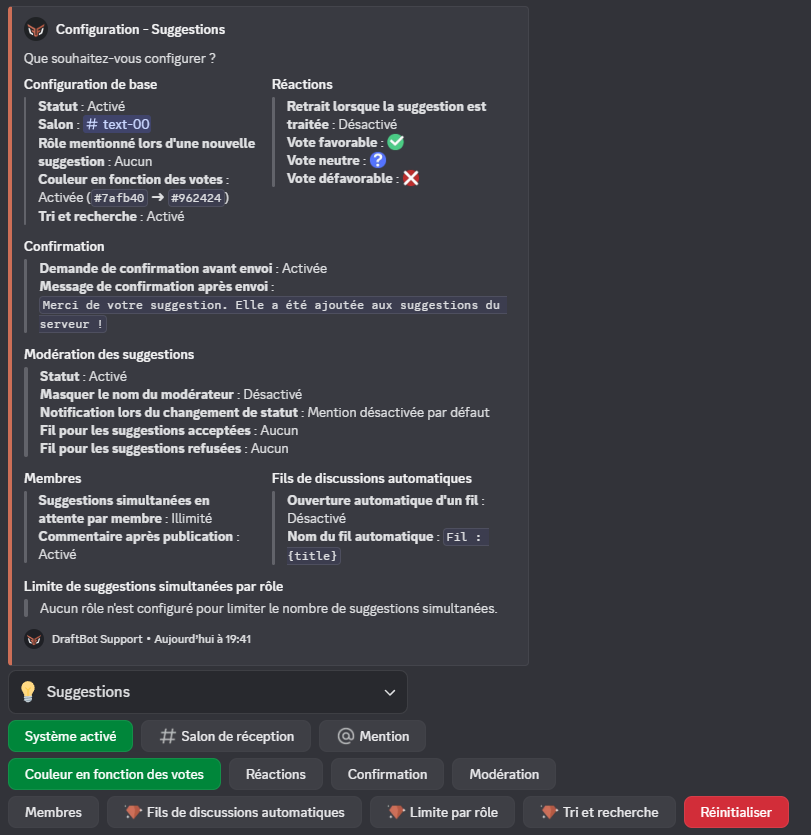
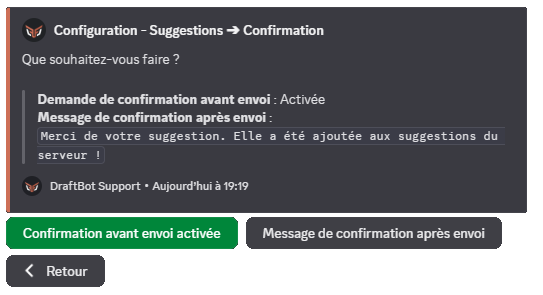
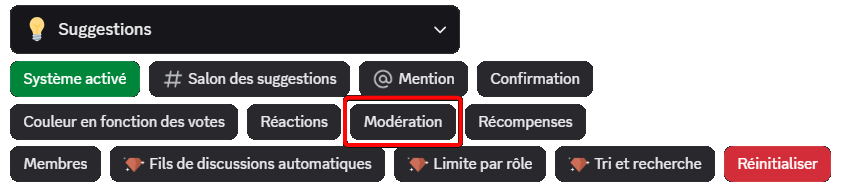
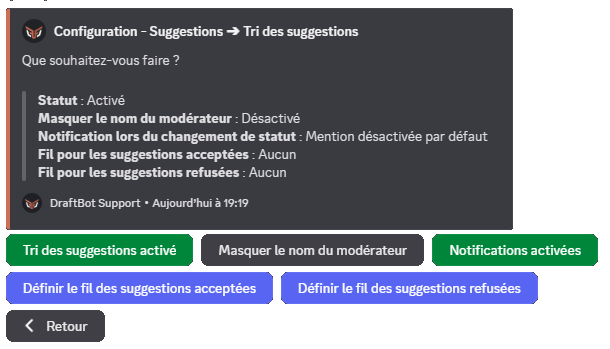
Once the command has been run, DraftBot displays a message containing:
information about the current state of the module,
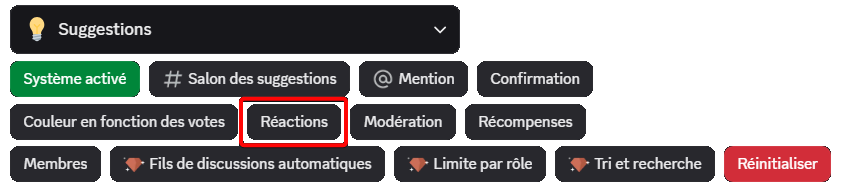
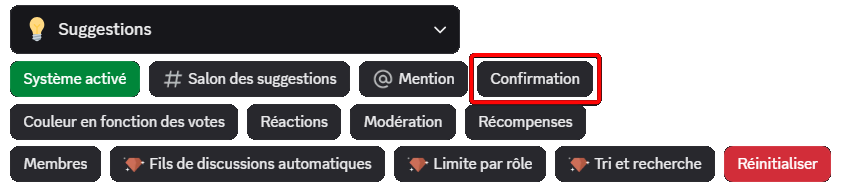
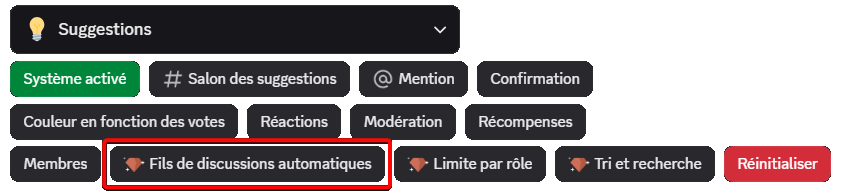
action buttons to change each part of the configuration (detailed in the sections below).
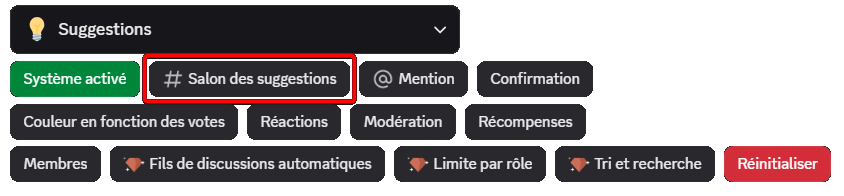
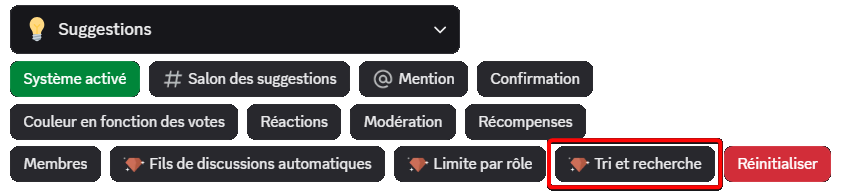
Configuration menu of the 💡Suggestions module, through the /config command
Required permissions in the suggestion reception channel: View Channel, Send Messages, Embed Links, Add Reactions and Manage Messages (for moderation). Without these permissions, the module cannot work properly.
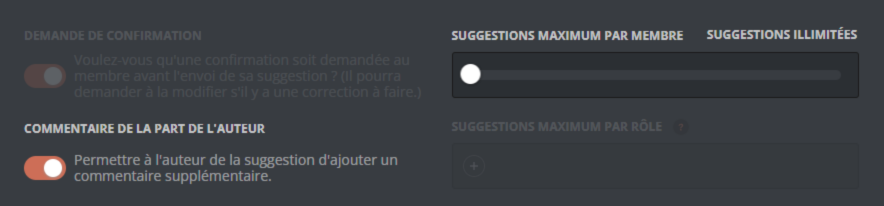
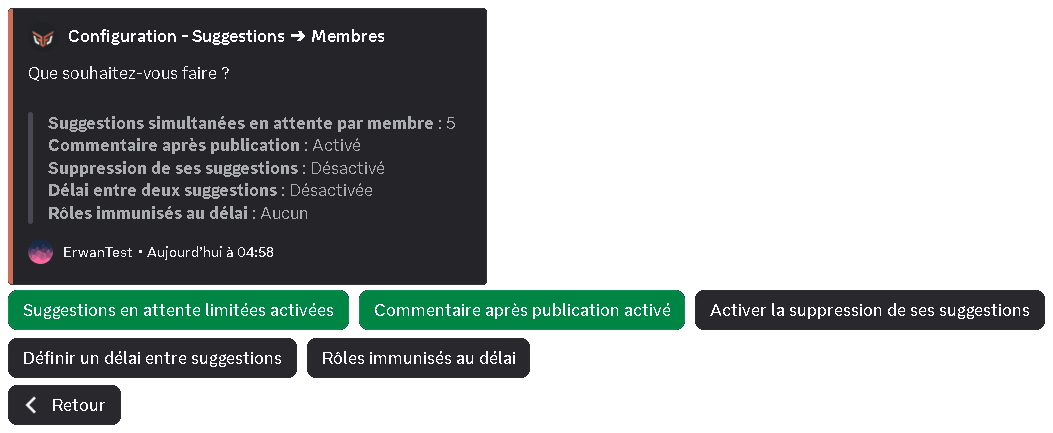
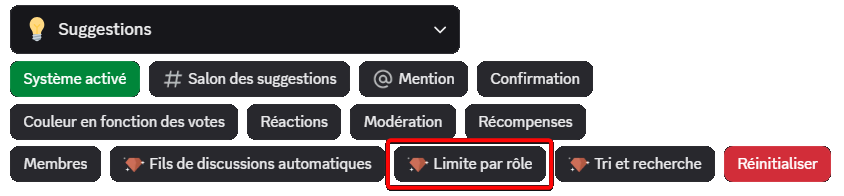
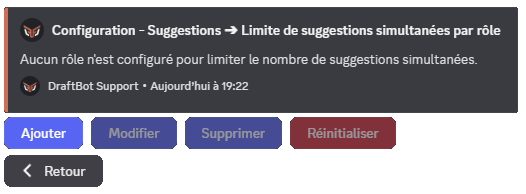
DraftBot lets you set a number of suggestions allowed over a given period (1 suggestion every 30 minutes, or 3 per day, for example), as well as exempt roles, which are not affected by this restriction.
Configuration on the panel
Click the "Members" button to open the member management menu.
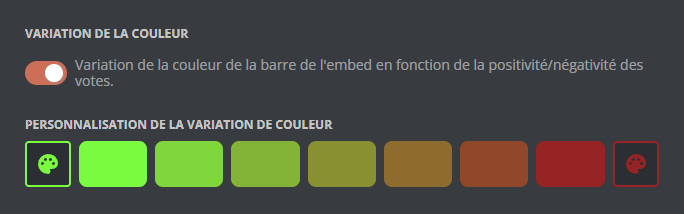
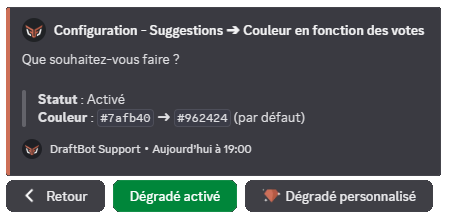
DraftBot can automatically vary the color of a suggestion depending on the ratio of positive / neutral / negative votes.
Managing color variations, from the panel
Premium servers can customize the gradient used to show how popular a suggestion is.
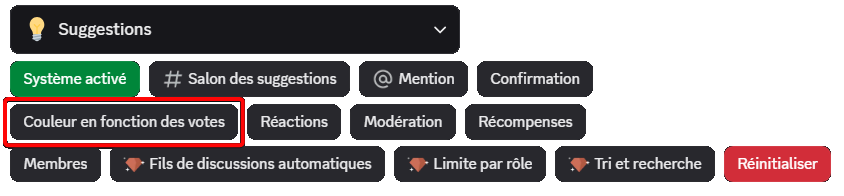
Click the "Color based on votes" button to open the color management menu.
"Color based on votes" button through the /config command
From this menu, you can:
Enable / disable the automatic gradient of suggestions
Change the colors
The "Color based on votes" menu, through the /config command
By default, DraftBot gradually varies the color of the suggestion, from red (more negative votes than positive ones) to green (more positive votes than negative ones), depending on the gap between the votes.
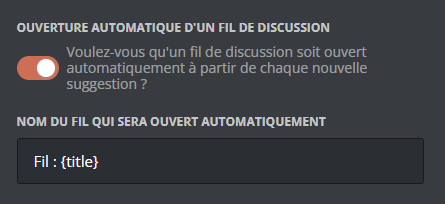
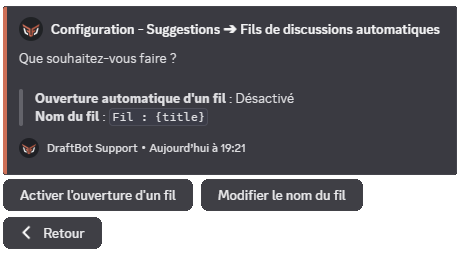
DraftBot can automatically create a thread attached to each suggestion, letting the author and the moderators interact together. You can enable or disable this feature and customize how the threads are named.
The thread name can be customized with the following variable:
Variable
Description
Example
{title}
Title of the suggestion
Questionnaire system
In addition to the other variables already available globally!
If you have not created any item yet, you first need to set up your inventory from the panel's Inventory module.
Offer a reward outside Discord: promotional codes, physical goodies, special mentions, etc.
Settings:
Name/description of the reward (up to 250 characters)
How does it work? When a member obtains this reward, you receive a direct message notification from DraftBot with the member's details. You can then hand the reward over yourself.
Make sure your direct messages are open so you can receive notifications!
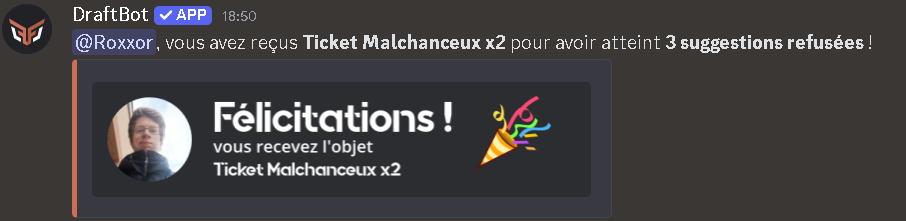
Once your rewards have been created, configure where and how to announce that they have been obtained.
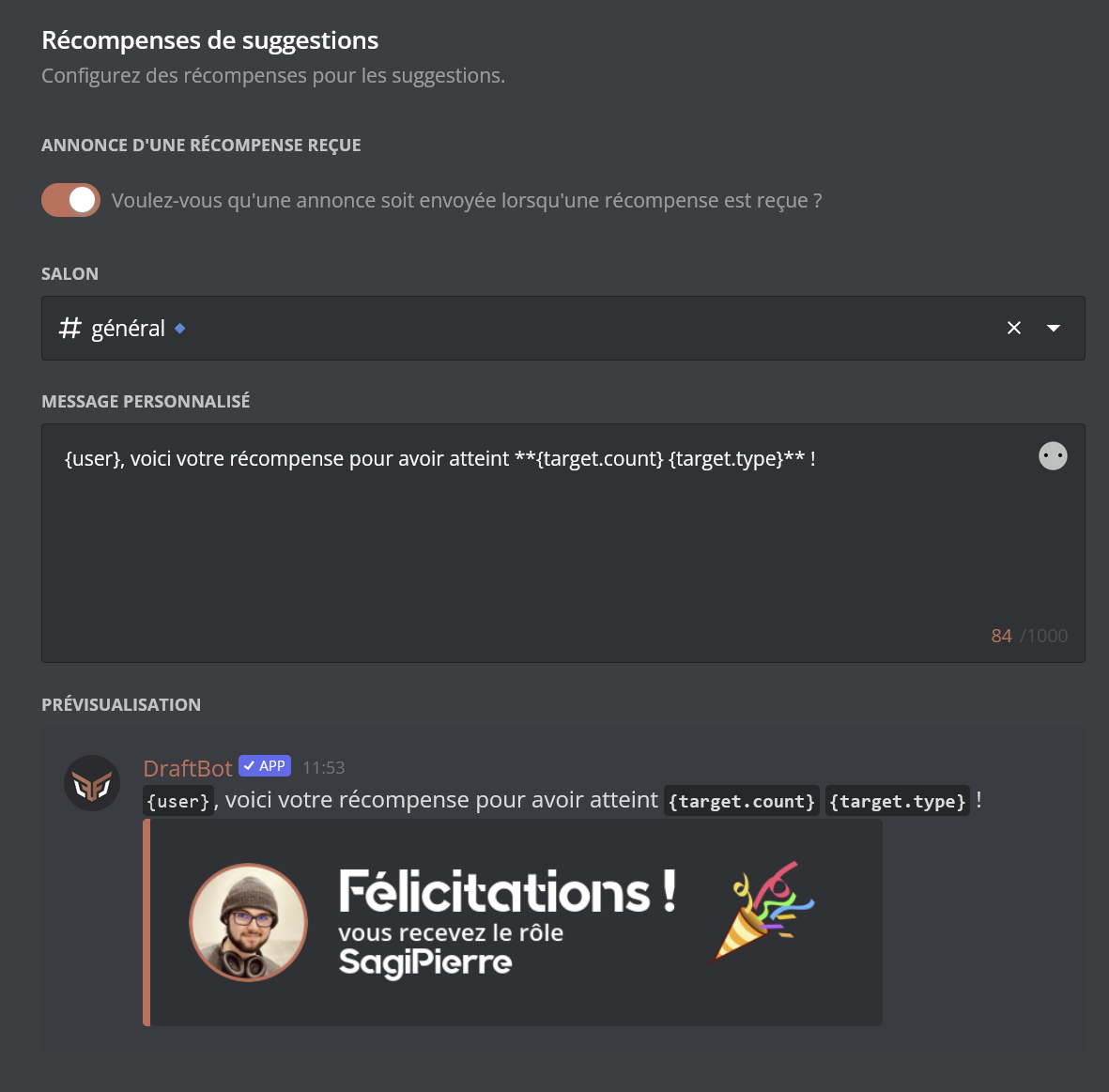
Announcement of a suggestion reward
Dedicated channel: choose a specific channel for the announcements.
Custom message: customize the message with the variables available globally, as well as {reward}, {target.count} and {target.type} to display the reward obtained.
Default message: {user}, here is your reward for reaching **{target.count} {target.type}**!
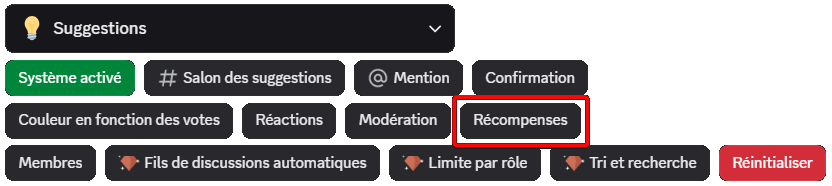
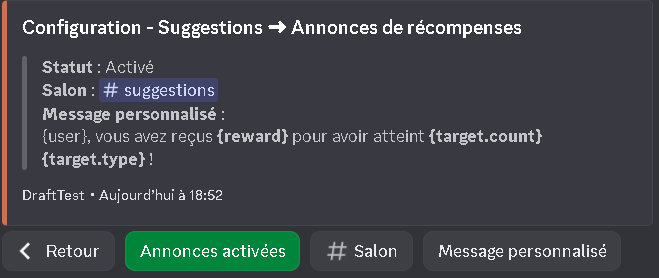
Open the "Suggestions" menu > "Rewards" > "Rewards announcements".
Announcement configuration through /config
Required permissions: to send announcements, DraftBot needs the following permissions in the chosen channel: View Channel, Send Messages, Embed Links and Attach Files. If these permissions are removed, announcements are disabled automatically.
 servers.